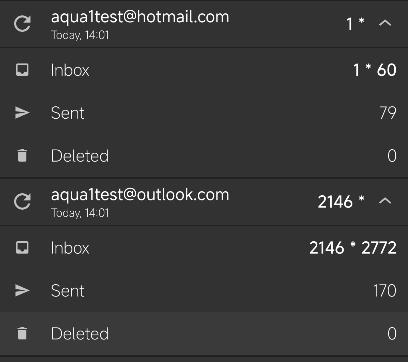
Microsoft has been rolling out changes to how Outlook/Hotmail/Live/MSN accounts authenticate in third-party mail apps.
In particular:
- Basic authentication (username + password / app password) is being disabled for many accounts.
- IMAP access now often requires modern OAuth2 login instead of app passwords.
- After a security event or temporary block, Microsoft may also reset or restrict app passwords.
That explains why the same account works in some apps but fails in Aqua Mail with an authentication error.
Please try the following:
- Remove the account from Aqua Mail
- Add it again, not manually (not IMAP; it won't work).
- When the Microsoft login page appears, sign in normally and approve access (OAuth). Do not use an app password in this flow.
- Make sure IMAP is enabled in your Microsoft account settings:
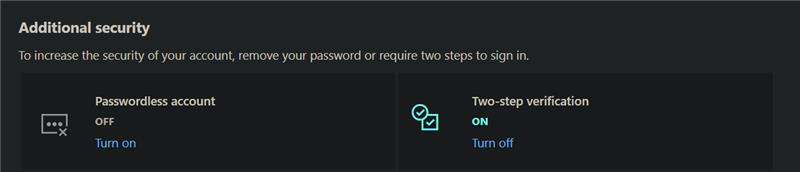
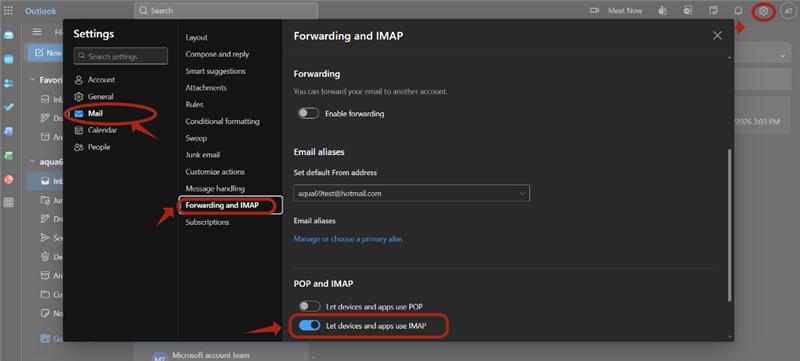
https://account.microsoft.com → Security → Manage how I sign in Advanced security options. Complete the two-step verification. Go to https://www.outlook.com > sign in to your email accountGo to Settings > Mail > Forwarding and IMAP > enable 'Let Devices & Apps use IMAP.'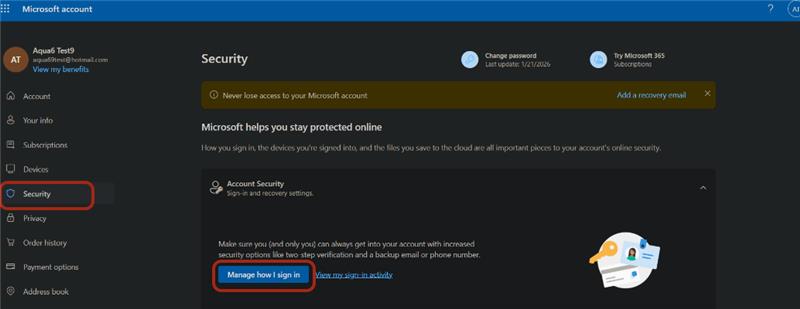
If it still fails:
- Log in to your Microsoft account on the web and check for any security alerts or temporary blocks.
- Remove any existing “Aqua Mail” or old app entries from Microsoft’s “Apps and services” list, then try again.
Here is an example: